
Back in 2023, Microsoft announced the Intune Suite, a collection of premium add-on capabilities for Microsoft Intune designed to give IT administrators more advanced endpoint management and functionality.
However, those extra capabilities came at a cost.
Some features, such as Remote Help, could be purchased as standalone add-ons. Others sat behind Intune Plan 2 licensing, while some required the full Intune Suite license altogether.
As a result, the common conversation quickly became:
“The features offer value, but the cost is hard to justify.”
Well, Microsoft are now changing that conversation.
If you are a Microsoft 365 E3 or E5 customer, now is a very good time to revisit the Intune Suite and review what additional value may already be heading into your existing licensing stack.
In this blog, I’ll break down:
- What Microsoft have changed
- An overview of the Intune Suite features
The Licensing Changes
In December 2025, Microsoft announced some fairly major licensing changes across Microsoft 365. Alongside the pricing updates came a significant shift in what is now included for Microsoft Intune customers, especially those already licensed with E3 or E5.
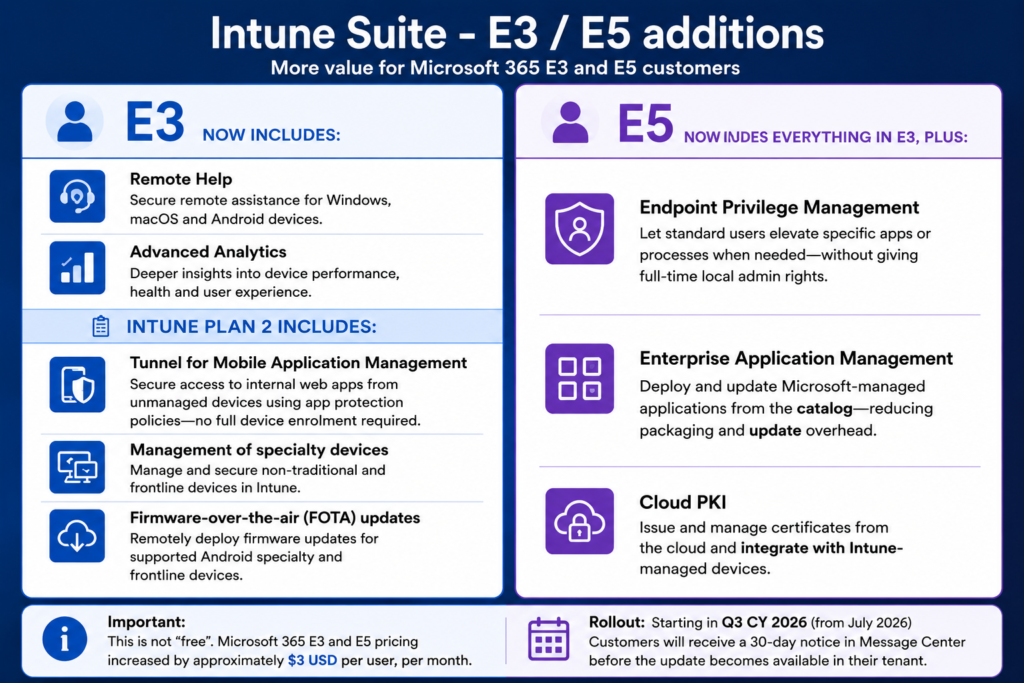
E3 now includes:
- Remote Help
- Advanced Analytics
- Intune Plan 2:
- Tunnel for Mobile Application Management
- Management of specialty devices
- Firmware-over-the-air (FOTA) updates
E5 now includes everything above, plus:
- Endpoint Privilege Management
- Enterprise Application Management
- Cloud PKI
There are additional Microsoft 365 changes outside of Intune too. However, for the sake of keeping this blog focused, I’ll stick to the endpoint management side of things.
Importantly though, this is not “free”.
Microsoft also announced a price increase of approximately $3 USD per user, per month for both E3 and E5 licensing. You can see the before and after pricing below…
Summary graphic:
The Features
Remote Help (E3/E5)
Remember SCCM Remote Control? You may still use it if you are carrying the SCCM torch or running Co-Management. Well Remote Help is kind of the Intune equivalent.
In simple terms, it allows IT Support to securely remote onto a user’s device directly from within the Intune portal or via the standalone Remote Help app. Support staff can request either view-only or full control sessions, elevation can be requested during the session if required and, importantly from a security and compliance perspective, sessions are tightly integrated with Entra ID authentication and Intune RBAC.
Within the Intune portal under:
Tenant Admin > Remote Help
…you’ll find both audit logs for Remote Help sessions and a monitoring page showing how many active sessions your organisation currently has.
You can also:
- Enable or disable connections to unenrolled devices
- Enable or disable the in-session chat functionality
Remote Help currently supports:
- Windows
- macOS
- Android
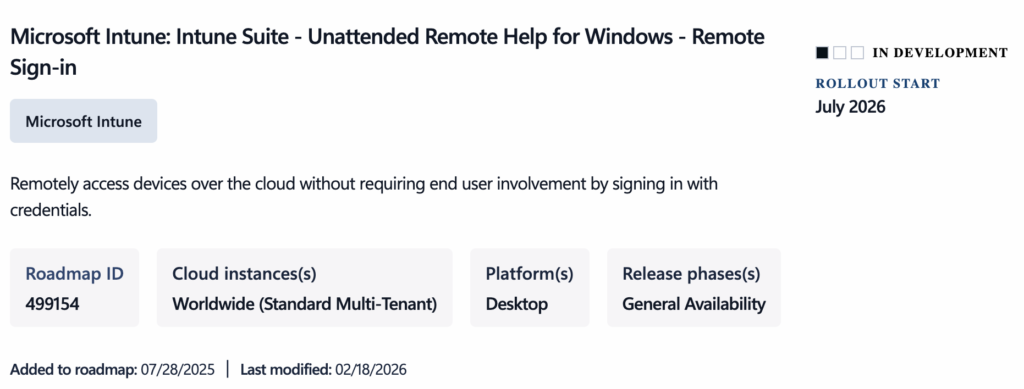
Microsoft’s roadmap also points to unattended Remote Help support for Windows coming soon, allowing connectivity to devices without a user present on the other end.
Overall, this is a really solid addition to E3 and E5 considering Remote Help costs around $3.50 per user, per month as a standalone add-on.
Advanced Analytics (E3/E5)
Advanced Analytics is another solid addition, especially considering as a standalone add-on this feature is $5 per user, per month.
It builds on the existing Endpoint Analytics functionality inside Intune, but gives you much deeper visibility into device performance, application reliability and user experience trends across your estate.
Within Intune under:
Reports > Endpoint analytics
You’ll find the additional reporting and analytics capabilities. Advanced Analytics adds reports:
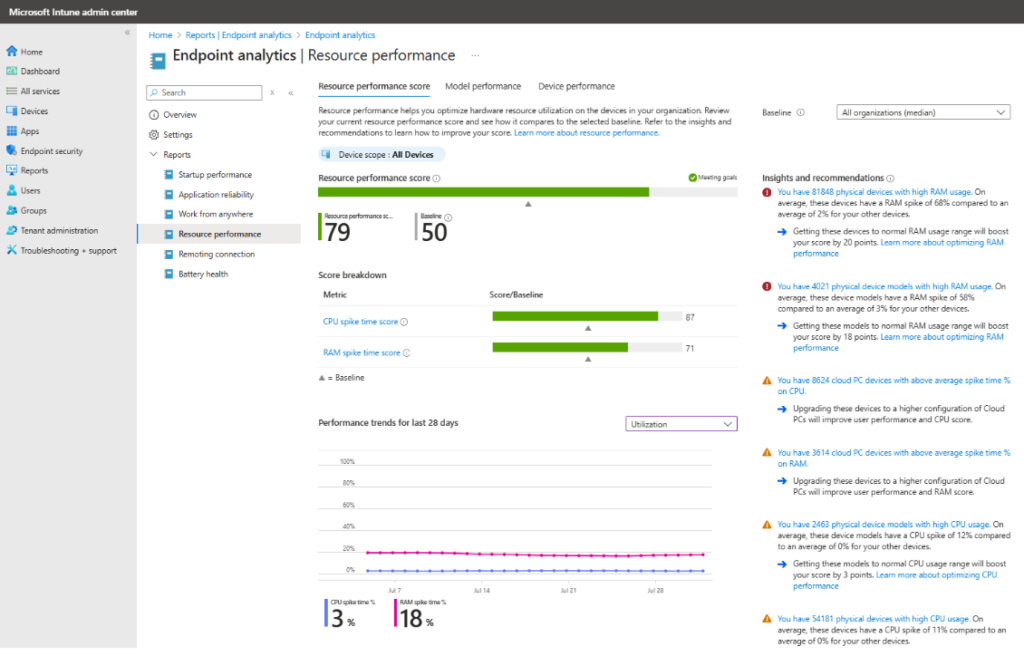
Resource Performance
The Resource Performance report gives you a clear overview of CPU and memory performance across your Windows devices and, more importantly, how that performance is actually impacting the end-user experience.
By monitoring the performance score, you can start spotting struggling devices before users begin flooding the Help Desk with “my laptop is slow” tickets.
One feature I particularly like is that it also provides actionable recommendations. For example, it can show you how much a devices score could improve with additional RAM or a better CPU, helping you make more informed decisions around upgrades and device refreshes before warranties expire.
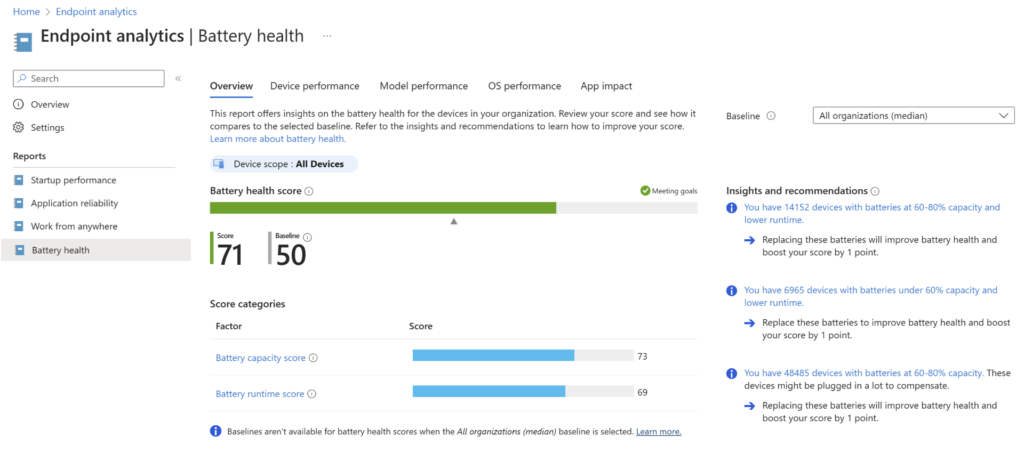
Battery Health
The Battery Health report gives you visibility into the overall health of batteries across your Windows device estate and how that may be impacting the end-user experience.
Much like the Resource Performance report, it is designed to help you spot hardware issues before users start raising tickets. Instead of waiting for complaints about battery life, shutdowns or devices not lasting through meetings, you can identify struggling devices early.
The report also provides actionable insights, showing how much the overall battery health score could improve if specific batteries were replaced.
From an operational perspective, this is actually pretty useful because it helps you:
- Proactively plan battery replacements before users are impacted
- Identify devices with failing batteries that may still be under warranty
- Reduce unnecessary device replacements by extending the lifespan of devices with otherwise healthy hardware
One particularly smart use case Microsoft calls out is combining this with the Resource Performance report. For example, if a device has strong performance scores and healthy battery capacity, you may decide to extend its lifecycle rather than replace it early, potentially reducing hardware spend.
Anomalies Report
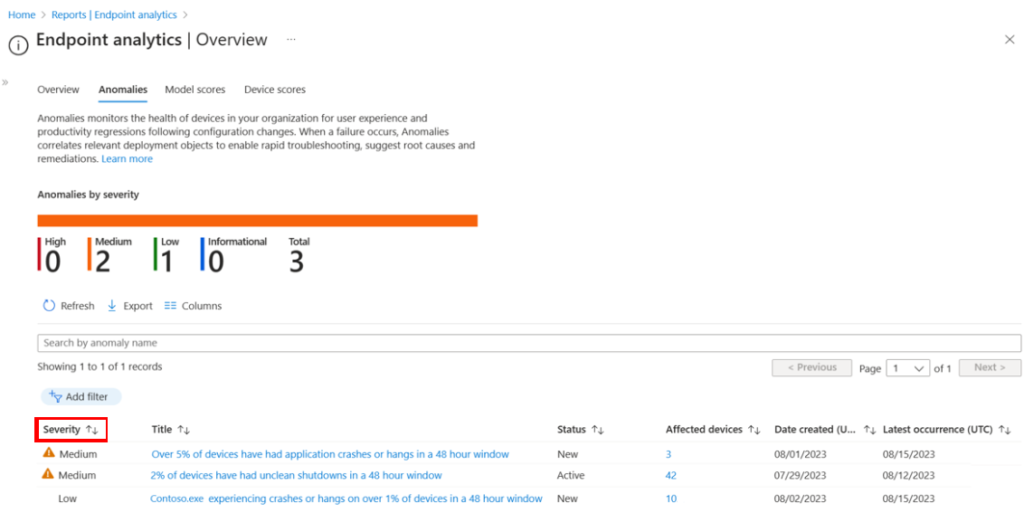
The Anomalies report is designed to help you spot device health issues before users start complaining about them.
It monitors things such as:
- Application hangs
- Application crashes
- Stop Error Restarts (BSODs)
…and surfaces trends across your environment before they turn into widespread support issues.
A real-world example of this would be spotting a specific application across your estate suddenly causing hangs or crashes. Instead of waiting for tickets to arrive, you can identify the trend early and proactively remediate it.
Device Timeline
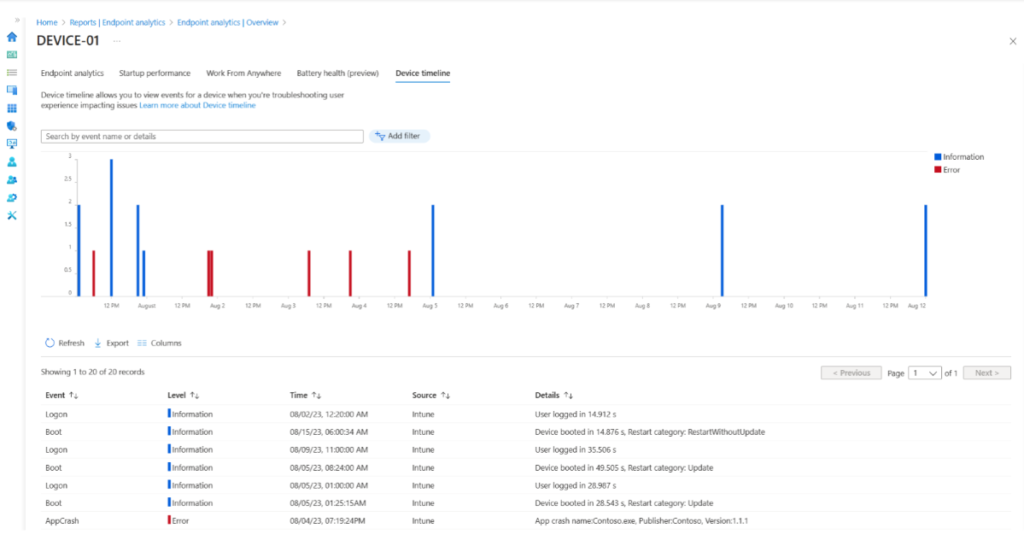
The device timeline allows you to see a history of events that have occurred on a specific device.
For this particular report you have to click into a singular device within the Intune portal, then browse to User experience > Device timeline.
This timeline shows a pretty useful history of events on the device, such as Boot, Logon, App Crashes etc. It also gives details as to how long the boot or logon took and the reason for the prior restart such as ‘Update’.
Device Query (& for multiple devices)
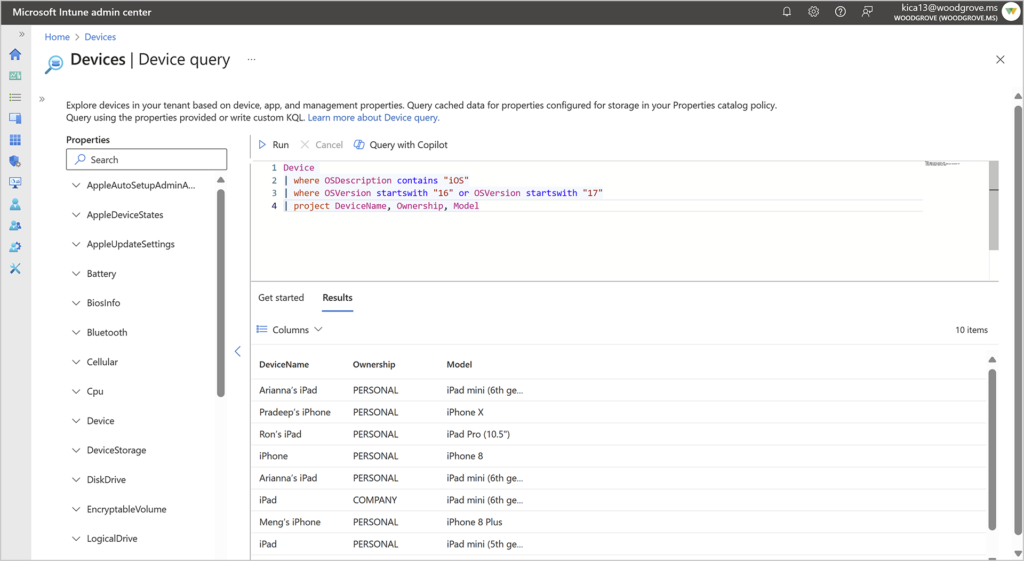
Device Query is a feature that, once you start using it, you realise how useful it can be.
In simple terms, it allows you to run real-time queries directly against Windows devices from within Intune and immediately retrieve live information about their current state.
This is not inventory data that synced hours ago. It is live.
The first thing to be aware of when using Device Query is that the query language is Kusto Query Language (KQL). If you are already comfortable with KQL from tools such as Microsoft Defender or Log Analytics, you will probably get off to a flying start, if not – it may take you some time to get up to speed.
The second thing to be aware of is that Intune uses Windows Push Notification Services (WNS) to communicate with the device, the device needs to be reachable and able to communicate with WNS for this feature to work. If you have WNS disabled – it will not work.
Device Query has both single-device and multi-device capabilities. You can run live queries against an individual device for troubleshooting, or query multiple devices at once to identify wider trends.
Tunnel for Mobile Application Management (E3/E5)
Tunnel for Mobile Application Management (MAM) is essentially Microsoft extending the Intune Tunnel concept to unmanaged or personally owned mobile devices using App Protection Policies, without requiring full device enrolment.
Traditionally, if you wanted secure access to internal on-premises web apps or resources from a mobile device, you would normally be looking at VPN connectivity and often full device management. Tunnel for MAM changes that.
Instead, you can publish internal web applications through Microsoft Tunnel and allow access only from managed applications protected by Intune App Protection Policies, such as Microsoft Edge.
In practical terms, this means a user could access an internal intranet site or web application from their personal phone, without enrolling the entire device into Intune, while still keeping the connection secure and corporate controlled.
From a security perspective, this is actually a pretty big deal because it aligns nicely with modern BYOD strategies and Zero Trust principles. You are securing the application and the data path, rather than taking ownership of the whole device.
Importantly, Tunnel for MAM was previously only available bundled within Intune Plan 2 or the full Intune Suite. It was not possible to purchase it as a standalone add-on, so its inclusion within E3/E5 is particularly useful if you have a solid use case.
Management of specialty devices (E3/E5)
Management of Specialty Devices is much more of a niche capability and, realistically, it is only valuable if you have a specific operational requirement for it.
Most standard corporate environments probably will not touch this feature.
However, if your organisation uses dedicated-purpose or frontline hardware, suddenly it becomes much more interesting.
This capability is designed around managing devices that are not your “traditional” Windows laptop or mobile phone. Think things such as:
- AR/VR headsets
- Conference room devices
- Large smart screens
- Specialist hardware
Historically, these sorts of devices often sat awkwardly outside of traditional endpoint management strategies. They either required separate tooling entirely, limited management capability or awkward workarounds.
This is Microsoft trying to bring those more specialised endpoint types into the Intune ecosystem properly.
For organisations operating in areas such as manufacturing, healthcare, retail, logistics or field engineering, there is potentially real value here. For the average office-based organisation though? You will probably read this feature description, and move on.
Again, this was only available in Intune Plan 2 or the full Intune Suite.
Firmware-over-the-air (FOTA) updates (E3/E5)
Firmware-over-the-Air (FOTA) updates is another feature that will probably fall into the “very useful if you need it, irrelevant if you don’t” category.
This capability is primarily aimed at organisations managing supported Android specialty and frontline devices, particularly hardware from vendors such as Zebra.
Traditionally, updating firmware on these sorts of devices has often been painful. In many environments it involved:
- Manual updates
- Separate vendor tooling
- Devices being physically returned to IT
- Or simply devices never getting updated at all
FOTA changes that by allowing firmware updates to be remotely deployed and managed directly through Intune.
Operationally, this could be interesting for industries such as: Retail, Warehousing, Logistics, Manufacturing & Healthcare …where you may have hundreds or thousands of shared handheld devices spread across multiple sites.
Instead of relying on local processes or separate management platforms, IT teams can centrally manage firmware updates from within the same Intune ecosystem already managing the devices themselves.
For your average office-based organisation, this feature probably will not move the needle much. And, again, this was only available in Intune Plan 2 or the full Intune Suite.
Endpoint Privilege Management (E5 only)
Now we are getting into the E5-only additions… and probably my personal favourite of the lot: Endpoint Privilege Management (EPM).
This feature could genuinely be a game changer for organisations focused on security, which realistically should be everyone.
EPM is Microsoft’s answer to one of the oldest and most painful endpoint management questions:
“How do we remove local admin rights from users without completely breaking productivity?”
Traditionally, organisations have struggled with this balance for years.
Give users local admin permanently? Huge security risk.
Remove it entirely? Suddenly you are flooded with requests because someone needs to install a printer, update an application or run something requiring elevation.
EPM sits in the middle.
In simple terms, it allows standard users to elevate specific applications or processes when required, without needing full-time local administrator rights on the device.
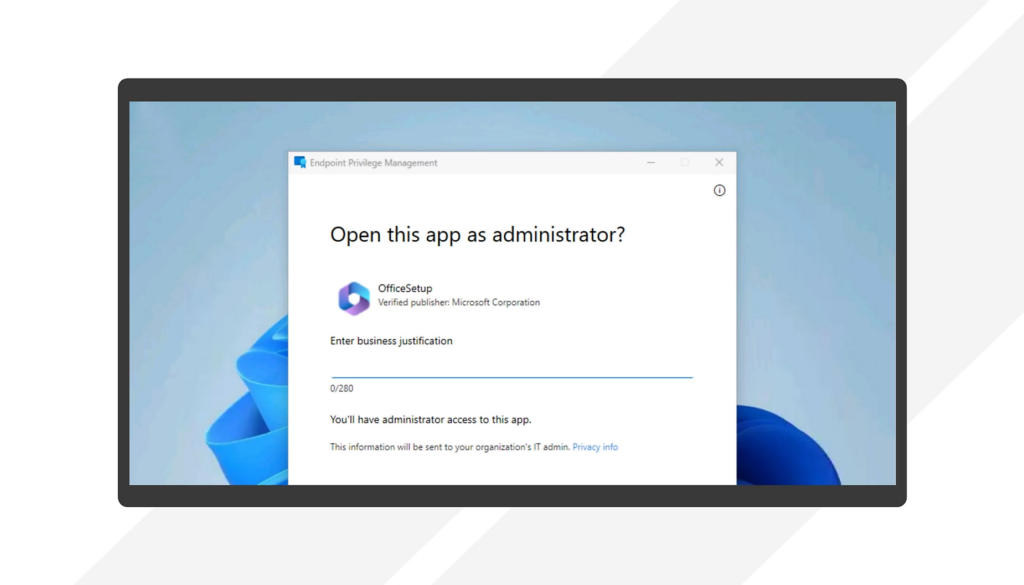
It works by using a temporary elevated context behind the scenes. When a user launches an application that matches an EPM policy, Intune can allow that application to run elevated under a managed privileged account and ruleset, without the user themselves becoming a local administrator.
From the users perspective, the experience can be surprisingly seamless. Depending on how you configure it, users can:
- Automatically elevate approved applications
- Submit elevation requests with business justification
- Require approval workflows
Or have elevation tightly controlled by policy rules
You can also define conditions around:
- Specific file hashes
- Publishers
- File paths
- Arguments
- Certificate trust
From a security standpoint, this is huge because it finally allows organisations to move much closer towards proper least privilege without completely destroying usability – think, Developers!
Historically, solving this problem properly often meant purchasing expensive third-party privilege management tools. Microsoft now bringing EPM directly into E5 is honestly a really strong addition for organisations already invested in E5.
Enterprise Application Management (E5 only)
Enterprise Application Management (EAM) is Microsoft’s attempt to simplify one of the most time-consuming parts of endpoint management, third-party application packaging, deployment and updating.
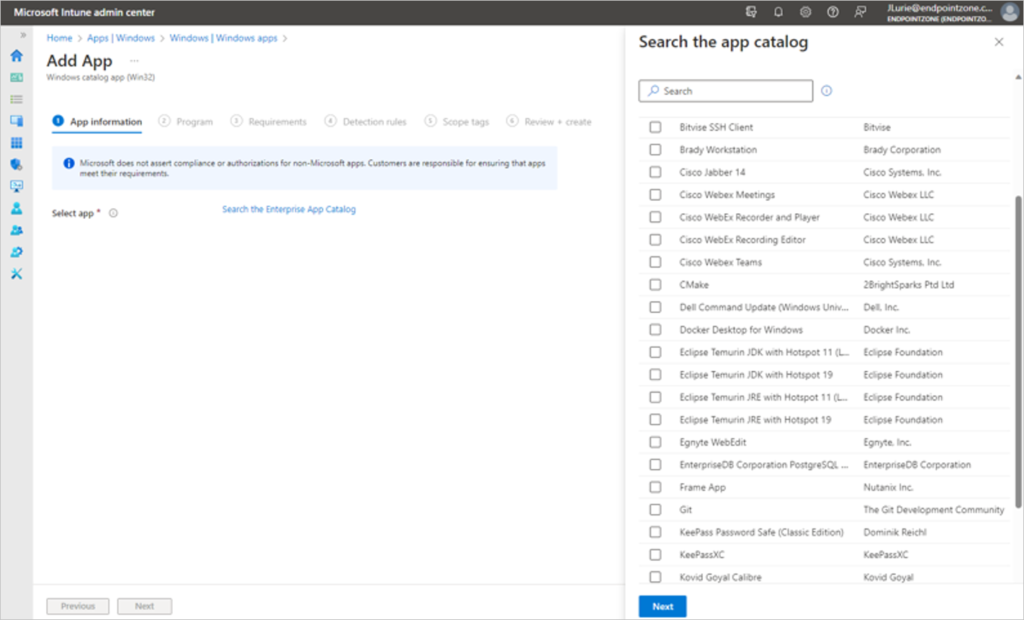
At the centre of EAM is Microsoft’s managed application catalog. In simple terms, Microsoft maintain and package supported third-party applications for you, and Intune can then deploy and update them automatically.
Now, I’ll be honest, the application catalog is still a little on the small side right now compared to some long-established third-party patching vendors, such as Patch my PC. However, it is growing steadily.
And importantly, it removes a lot of the operational overhead that traditionally comes with application management.
Anyone who has managed applications in Intune at scale will know the pain:
- Downloading installers
- Packaging applications
- Testing updates
- Fixing failed installs
- Repeating the cycle every patch/update forever
EAM is Microsoft trying to take a chunk of that pain away.
Would I personally have recommended purchasing the full Intune Suite purely for EAM before? Probably not. Likewise, I think many organisations struggled justifying the standalone add-on cost of around $2 per user, per month for this feature alone.
But now?
If you are already licensed for E5 and EAM is simply included, it is absolutely worth looking at.
Even if you do not fully replace existing third-party patching solutions such as Patch My PC or other packaging platforms, there is still potential value in offloading management of at least some applications into Microsoft’s ecosystem.
Cloud PKI (E5 only)
Finally, we have Cloud PKI.
Traditionally, Public Key Infrastructure (PKI) has been one of those areas that is powerful, important… and often a bit painful.
- On-premises Certificate Authorities (CA)
- NDES servers
- Certificate connectors
- Complex renewal processes
- High availability considerations
For many organisations, especially cloud-native ones, traditional PKI infrastructure can feel like one of the last awkward pieces of on-premises baggage still hanging around.
Cloud PKI is Microsoft’s attempt to modernise that.
In simple terms, it allows organisations to issue and manage certificates directly from Microsoft’s cloud infrastructure and integrate them with Intune-managed devices.
This becomes particularly useful for scenarios such as:
- Wi-Fi authentication
- VPN authentication
- Certificate-based authentication
- SCEP certificate deployment
- Device trust scenarios
And generally reducing reliance on traditional on-premises PKI infrastructure. For cloud-native organisations especially, this is a pretty compelling direction.
Instead of maintaining multiple supporting servers and infrastructure components purely for certificate delivery, Microsoft are essentially trying to make certificate management another cloud-managed service inside the wider Intune and Entra ecosystem.
Now, realistically, large enterprises with deeply established PKI environments are probably not ripping out their existing infrastructure overnight.
But for:
- Newer cloud-native organisations
- Organisations simplifying infrastructure
- Or businesses already heavily invested in Intune and Entra
…this could significantly reduce complexity over time.
With Cloud PKI being included within E5 this is definitely one to explore if you are managing devices via Intune but still relying on on-premise CAs for certificates!
It’s nearly time…
As I mentioned at the start of this blog, Microsoft actually announced these licensing changes towards the back end of 2025.
So… why am I talking about this now? And why should you actually care as an E3 or E5 customer?
Well… because it is nearly time.
Microsoft stated these changes will begin rolling out to tenants during Q3 of calendar year 2026. In other words, from July 2026 onwards, which at the time of writing is less than two months away.
Importantly too, Microsoft have confirmed that:
“Customers will receive a 30-day notice in Message Center before the update becomes available in their tenant.”
So if you are responsible for Intune, endpoint management or Microsoft licensing within your organisation, now is probably the right time to start reviewing what value you may actually be able to take advantage of from these Intune Suite additions.
For some organisations, this may simply mean finally trialling Remote Help. For others, this could be the catalyst for removing local admin using EPM or offloading some packaging using EAM.
Overall, I think this is one of the more significant Intune licensing shifts Microsoft have made in a long time. Not because it introduces brand new technology, but because it suddenly makes a lot more of that technology accessible to existing E3 and E5 customers.