

New guidance has been published by Microsoft on how to handle API interaction with Multi Admin Approval (MAA) – In this blog we dive in!
MAA in Intune has been around for a little while now, but it has gained more attention as organisations look more closely at protecting high-risk Intune actions from accidental or malicious change – see Stryker attack.
If you are not familiar with MAA, the overarching process is:
- You configure an access policy to protect an action – for example, device wipe.
- An admin tries to make a protected change inside the Intune admin centre.
- Another admin approves it.
- The requesting admin completes the action.
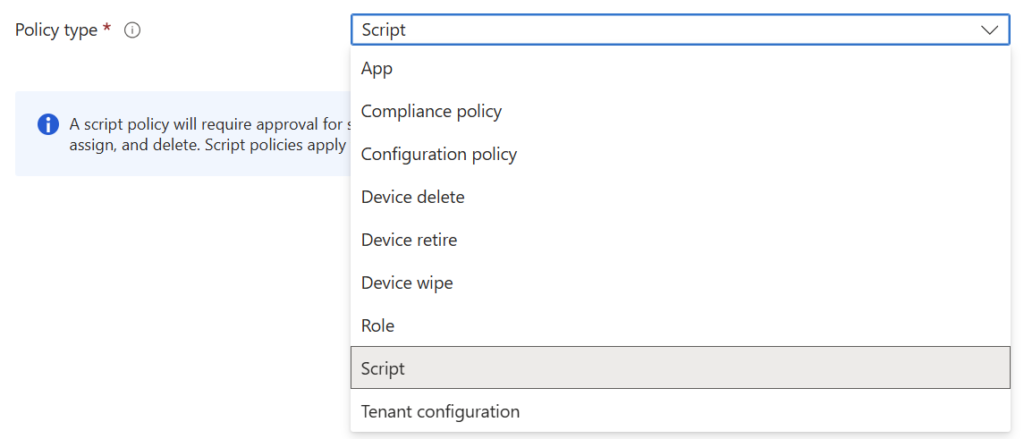
This process works well within the Intune admin centre, however one area that had some outstanding queries was around Multi Admin Approval with APIs – during my own testing, with an MAA access policy enabled the protected action would fail if invoked via an API.
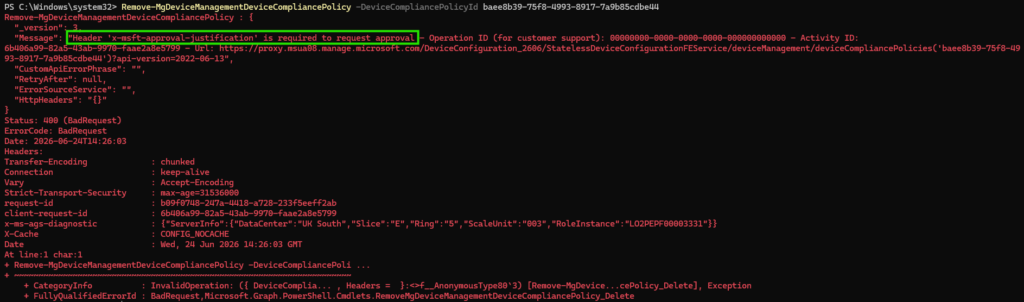
Here is an example of attempting to delete a Compliance Policy via Graph PowerShell with MAA enabled for Compliance Policies.
The attempt fails with a 400 (BadRequest) requiring a header of ‘x-msft-approval-justification‘ to request approval.
Often in large, complex enterprise environments, sensitive changes are not always made by someone clicking around in the Intune admin centre. They are often made by scripts, service principals, CI/CD pipelines, third-party tools, scheduled jobs, or some lovingly maintained PowerShell that nobody wants to touch because “it just works”.
What’s changed for Multi Admin Approval with APIs?
Microsoft has now documented and formalised the approval workflow for Multi Admin Approval when making Microsoft Graph API calls using application authentication.
During testing, protected actions could already fail when invoked via an API if an MAA access policy was in place. The difference now is that there is clear guidance on how those API-driven changes should be handled.
In other words, if your automation is modifying Intune resources that are protected by an MAA access policy, you now need to make sure your process can support the approval workflow.
So if you have something like:
- service principal updating Intune apps
- scheduled PowerShell script modifying configuration profiles
- third-party tool making Graph calls into Intune
- automation process deploying scripts
- pipeline managing Intune resources as code
- custom portal making Intune changes through Graph
Those calls will require MAA approval if the target resource is protected by an active access policy.
This does not mean MAA is being automatically switched on for every tenant – It only applies where you have configured MAA access policies.
So if you do not use MAA today, this change does not suddenly enable it for you.
But if you do use MAA, and you also use automation against protected Intune workloads, or plan to, then you need to understand how this flow works before something quietly starts failing.
What happens if your script is not updated?
If your automation makes an API call to modify an MAA-protected Intune resource and does not include the required approval headers and you have MAA enabled for that resource… It will fail – as shown above.
Which API calls are affected?
MAA only applies to operations that modify protected resources.
Read-only GET requests are not affected.
The risk area is anything that creates, updates, deletes, assigns, or triggers actions against protected Intune resources.
For example:
- Creating or updating an app
- Changing a compliance policy
- Updating a configuration policy
- Running protected device actions
- Modifying Intune RBAC
- Creating or updating scripts
- Changing tenant configuration
Basically, if the action changes something protected by MAA, assume it needs checking.
How the new approval flow works
At a high level, the process looks like this.
1. You must include a justification header in your request
The header is: x-msft-approval-justification and the value must be Base64 encoded.
For example, your justification might be worded like: Delete old compliance policy – But, you need to Base64 encode that value before sending it in the header, for example for the above justification: RGVsZXRlIG9sZCBjb21wbGlhbmNlIHBvbGljeQ==
For our Delete Compliance Policy example, this would look like:
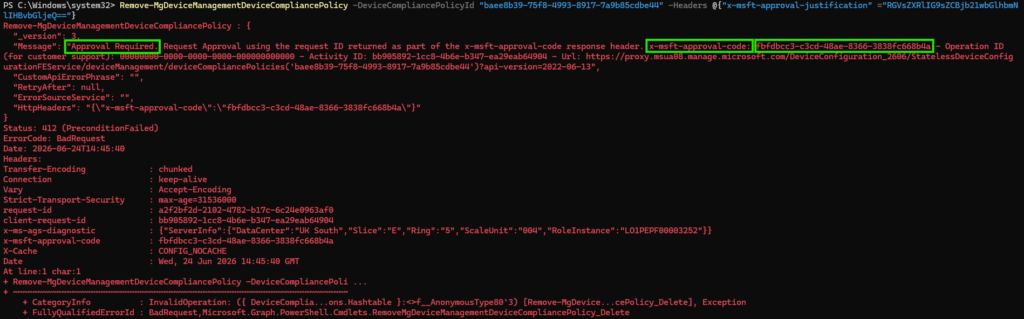
Remove-MgDeviceManagementDeviceCompliancePolicy -DeviceCompliancePolicyId "baee8b39-75f8-4993-8917-7a9b85cdbe44" -Headers @{"x-msft-approval-justification" ="RGVsZXRlIG9sZCBjb21wbGlhbmNlIHBvbGljeQ=="}2. Graph responds with an ApprovalRequired error.
This is expected!
The response includes an approval code in the x-msft-approval-code header. Your automation then needs to capture that approval code…
The request will now be logged in Intune.
3. At this point, a separate administrator must approve the request in the Intune admin centre as normal – approvals cannot be automated.
The automation cannot approve its own request.
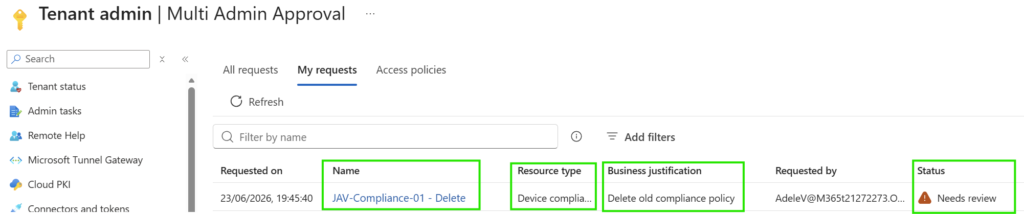
Manual interactive approval required…
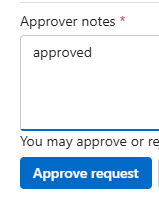
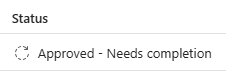
4. Once the approval is completed, the automation must re-run but this time use a different header x-msft-approval-code and specify the approval code I highlighted in step 2.
For our Delete Compliance Policy example, this would look like:
Remove-MgDeviceManagementDeviceCompliancePolicy -DeviceCompliancePolicyId "baee8b39-75f8-4993-8917-7a9b85cdbe44" -Headers @{"x-msft-approval-code" ="fbfdbcc3-c3cd-48ae-8366-3838fc668b4a"}Now this flow is completed and the Compliance Policy is deleted.

Exclusions
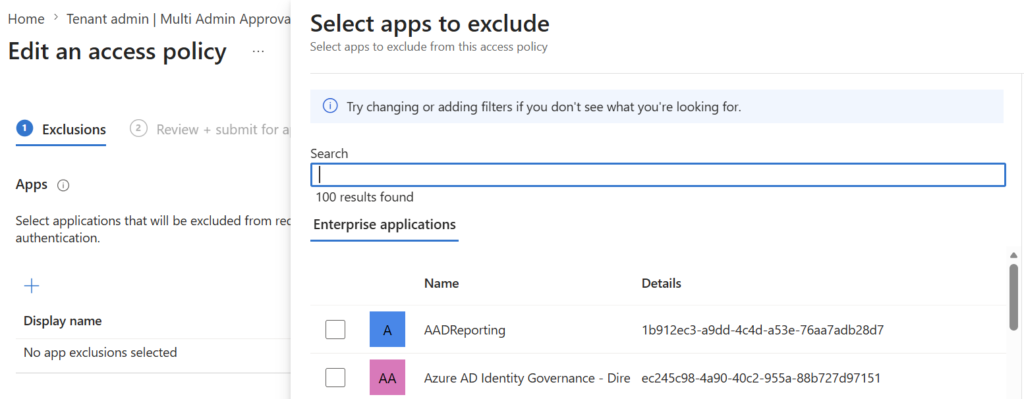
Microsoft has added an Exclusions tab in the access policy wizard.
This allows you to exclude specific Enterprise applications from MAA enforcement. That gives organisations a bit of breathing room where an immediate code change is not feasible.
For example, you may have a third-party application that cannot currently support the MAA approval workflow or you may have critical automation that needs more design work before it can be changed safely.
In those cases, you can exclude the application from MAA enforcement for the relevant access policy.
But this should not be treated as the default answer, as if access to this app is compromised – your MAA safety-net is also compromised.
What should you check now?
If you use Multi Admin Approval in Intune already, I would start with a simple review.
- Identify which MAA access policies you have configured.
- List out the automations you have interacting with Intune already.
- Determine whether anything is already broken after enabling MAA. You may not have noticed automation quietly failing.
- Take action to update or exclude them if so.
On the other hand if you are thinking of enabling MAA..
- List out the automations you have interacting with Intune already.
- Determine which MAA actions you want to enable and if they will impact your automations
- Take action to update the automations or exclude from your new MAA policies.
Final thoughts
I like that this change gives you an option and guidance for handling MAA via API. If a protected Intune resource requires approval, that approval should apply regardless of whether the change comes from a person in the portal or an application calling Graph.
That is the right direction.
But I also think this is one of those changes that could catch organisations out if they have already invested heavily in Intune automation and want to enable MAA.
The biggest thing to understand is that this is not just a permissions change. It is a workflow change. Updating a few lines of code may get the API call working, but it does not solve the bigger question of who approves automation-driven change, how it is tracked, and when exclusions are acceptable.