

If you read my last blog on RBAC, you may remember I mentioned that Scope Tags can introduce a fair bit of complexity. One of the biggest reasons for that is how Intune RBAC handles Scope Tag merging behaviour. Well… Microsoft are addressing that.
They’ve introduced a new “scoped permissions” model, currently in opt-in public preview (as of March 2026), and it fundamentally changes how Intune RBAC with Scope Tags works.
In this blog, I’ll break down:
- What the problem is today
- What’s changing
- Why it matters
- And what you should be thinking about when considering this change in your environment
The Problem – Permission Merging (The Bit That Catches Everyone Out)
Let’s start with how things work today. By default, Intune does something that sounds helpful… but can be dangerous:
It merges permissions across role assignments if they share the same permission category (for example, Device configurations).
At first thought, that doesn’t sound too bad… But here’s where it goes wrong.
Example Scenario
Let’s say you have a Security team responsible for managing Security configuration policies only, but you want to give them visibility to all other configuration policies – you assign:
- Role 1
- Permissions: Read to majority of areas of tenant – see example later in blog for clarity
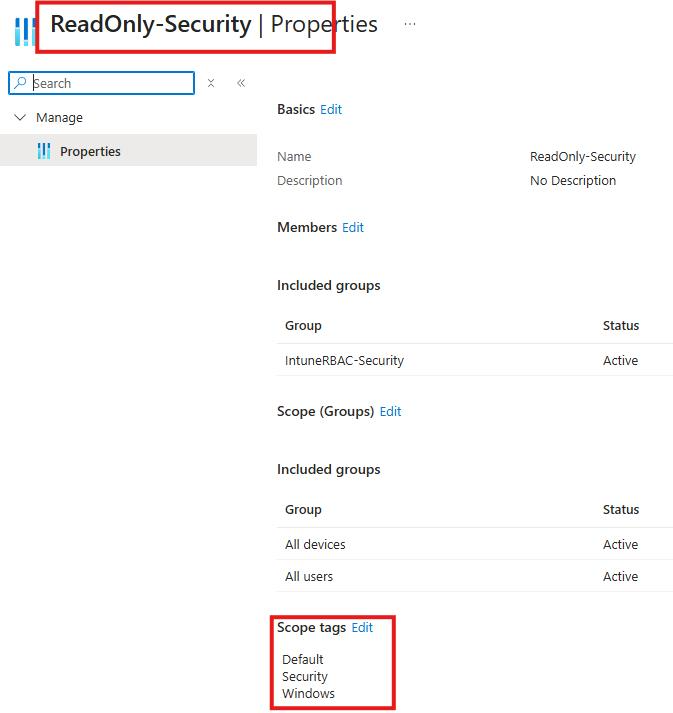
- Scope Tag: Windows, Security, Default
- Role 2
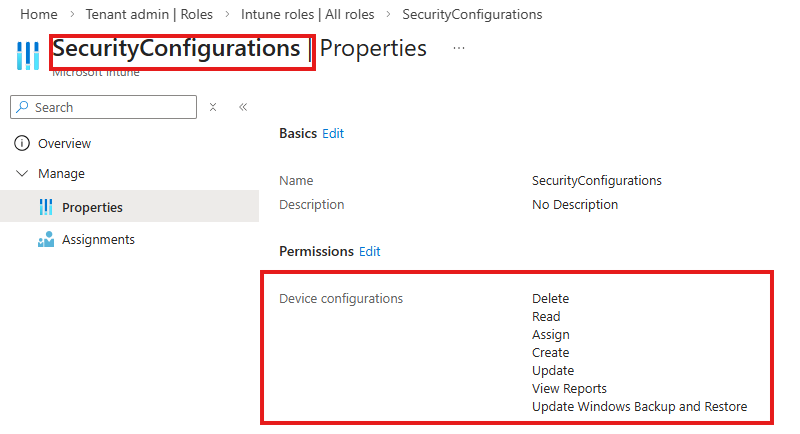
- Permissions: Device configurations (Create, Read, Update, Delete, Assign)
- Scope Tag: Security
What you expect:
- Read-only access to Device configurations tagged with Windows, and the rest of the Intune tenant
- Full access to Device configurations tagged with Security
What you actually get:
- Full access to all Device configurations tagged with Security or Windows
Why? Because Intune sees:
- Same permission category → Device configurations
- Multiple role assignments → merge them together
So instead of respecting the boundary between scope tags, it effectively says:
“You’ve got full permissions on one tag… so here you go, have it on all the tags you are assigned.”
That’s the problem.
Why This Is a Big Deal
This behaviour directly conflicts with what most people are trying to achieve with RBAC:
- Least privilege
- Segregation of duties
- Controlled admin boundaries
You think you’ve designed something clean and secure…But under the hood, permissions are being silently expanded. And unless you test it thoroughly, you probably won’t notice – I have tested this first-hand and seen it!
This is one of the main reasons Scope Tags get labelled as “complex” or “unpredictable”. Because in reality, they don’t behave as strictly as you think they do.
The Fix – Scoped Permissions (Public Preview)
Microsoft’s answer to this is scoped permissions. This is a tenant-level setting (opt-in) that changes how permissions are applied.
What Changes?
Instead of merging permissions across assignments:
Each role assignment is evaluated independently within its own scope tag.
So going back to the same example:
- Windows tagged Device configurations → Read only
- Security tagged Device configurations → Full access
That is now exactly what the admin gets. No merging.
The Important Bit – This Is a One-Way Switch
Before you rush off and enable it during the public-preview…
There’s a big callout from Microsoft:
Enabling scoped permissions is irreversible.
Once it’s on:
- You cannot go back to the old behaviour
- Your permission model fundamentally changes
This is not a toggle you “just try out”. However, Microsoft advise “In the future, this will become the default behaviour for all tenant” – therefore, it is important to understand and plan for it.
Let’s take a look…
To show this properly, I recreated the exact scenario in a test tenant, let’s see how this looks inside Intune taking onboard all of the above information.
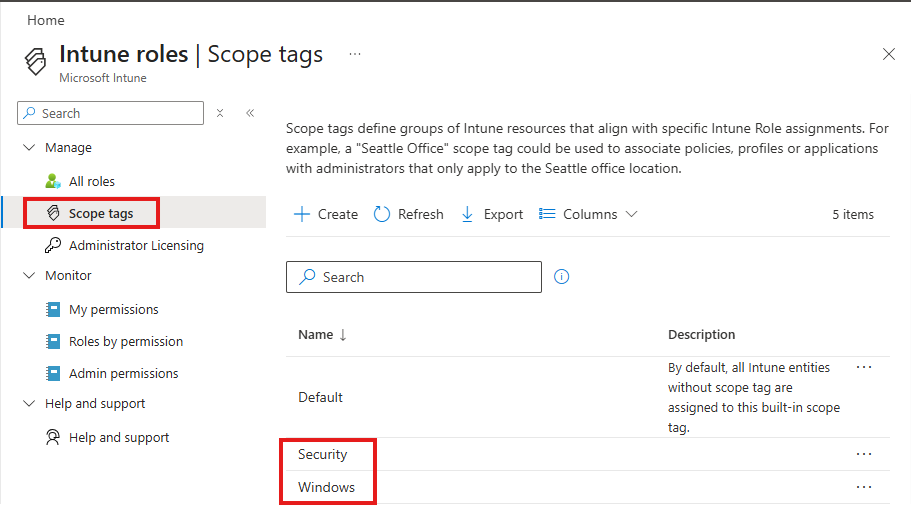
Scope Tags
Two Scope Tags, Security & Windows.
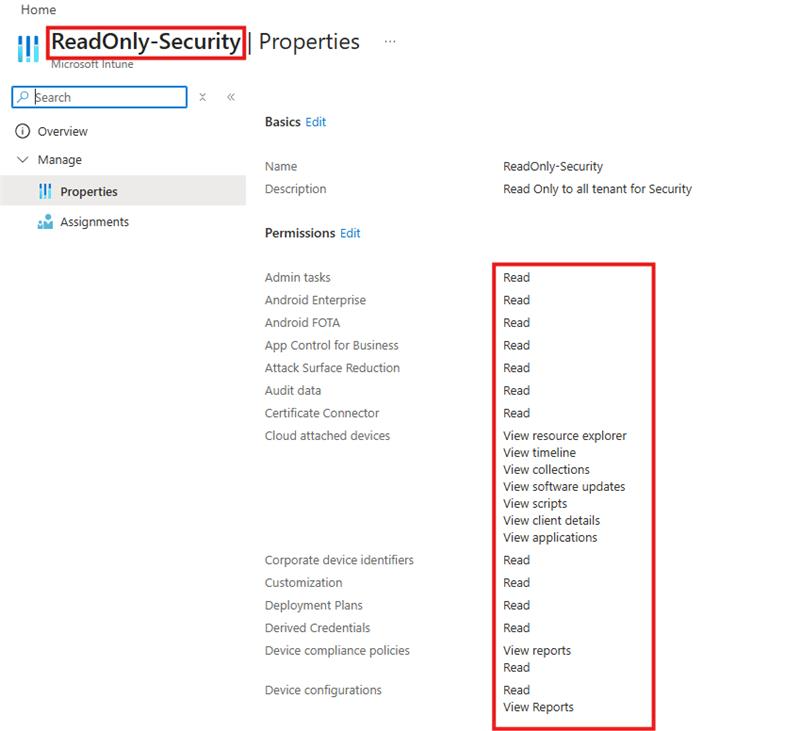
Custom RBAC roles
Two custom roles.
One gives Read-only access to the majority of the tenant for Security. This is assigned with all the Scope Tags in my tenant, so Security can read everything.
The second gives the Security team write access to Device configurations tagged with Security only.
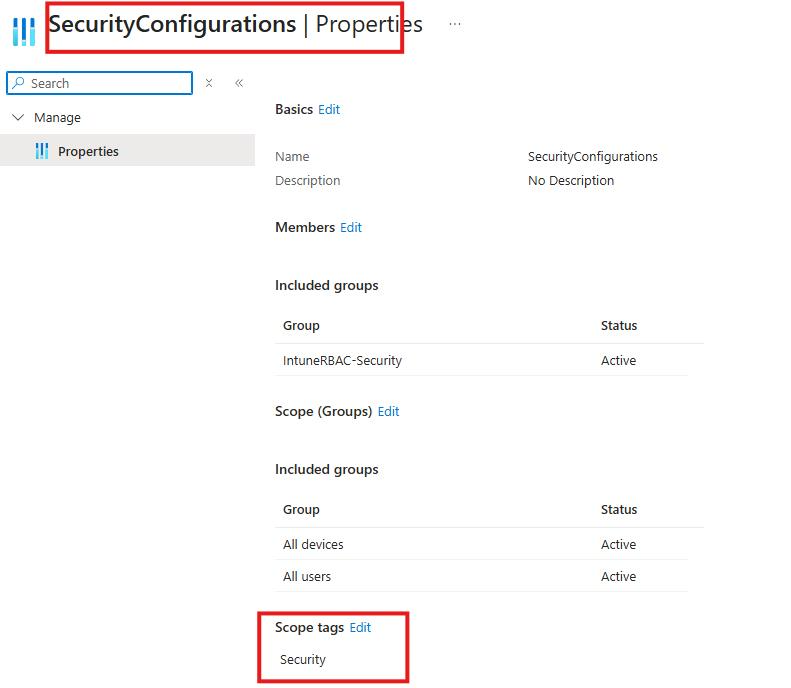
Logically thinking, you would expect the members of the IntuneRBAC-Security group to have read-only permissions to the majority of the Intune tenant including Device configurations, but have Delete, Update etc on Security tagged device configurations only.
What actually happened…
I created 2 Device configurations, one is tagged with Security and one with the Windows Scope Tag – you would expect that the account assigned the roles above, would only be able to edit the Security tagged policy.

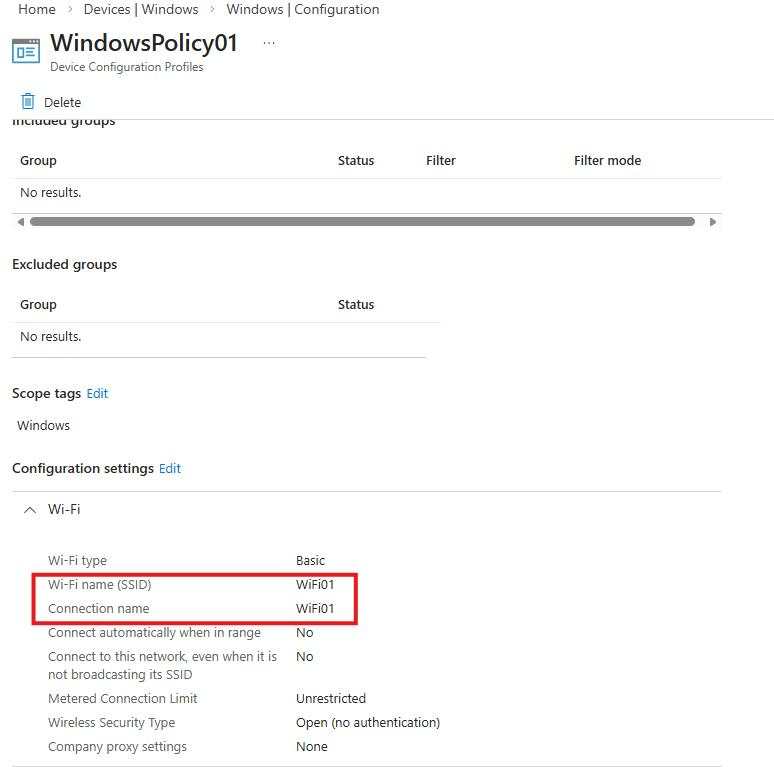
Signed in with an account that only has the above two roles, I attempt to edit the WindowsPolicy01 which is a basic Wi-Fi profile. The Wi-Fi name is currently WiFi01 and no Proxy is set.
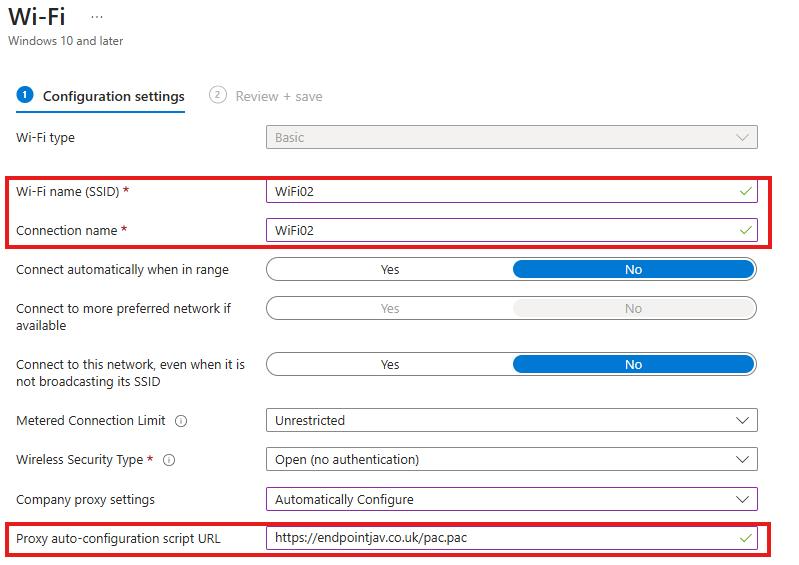
I change the Wi-Fi name (SSID) and Connection name to WiFi02 and add some proxy settings.
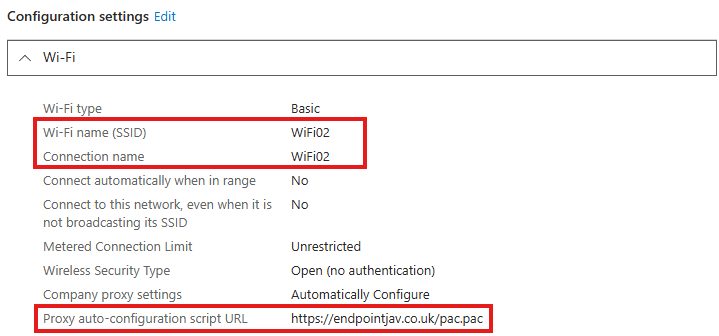
I review & save the policy – and Intune allows me to do this, and here clearly demonstrated is the issue with Scope Tag merging, you would not expect this role to have been able to update this configuration policy.

The Fix?
The new opt-in toggle I mentioned earlier in the blog, currently lives under Tenant administration > Roles > Settings > Enable scoped permissions
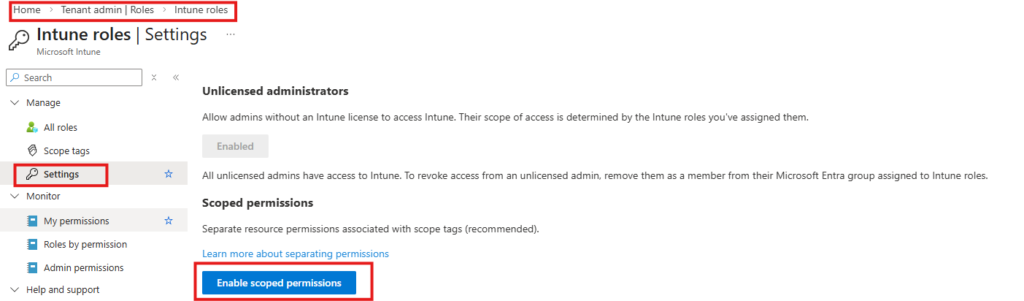
Let’s enable it…
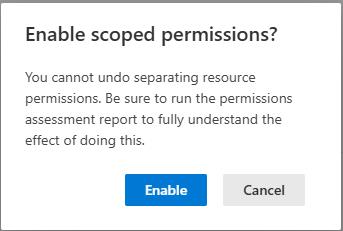
Done.
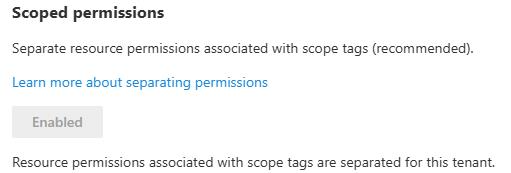
Did it fix the issue?
I attempted to edit the Wi-Fi policy once again, this time changing the name to WiFi03 – interestingly, the Intune GUI allowed me to go through the steps of editing the policy.
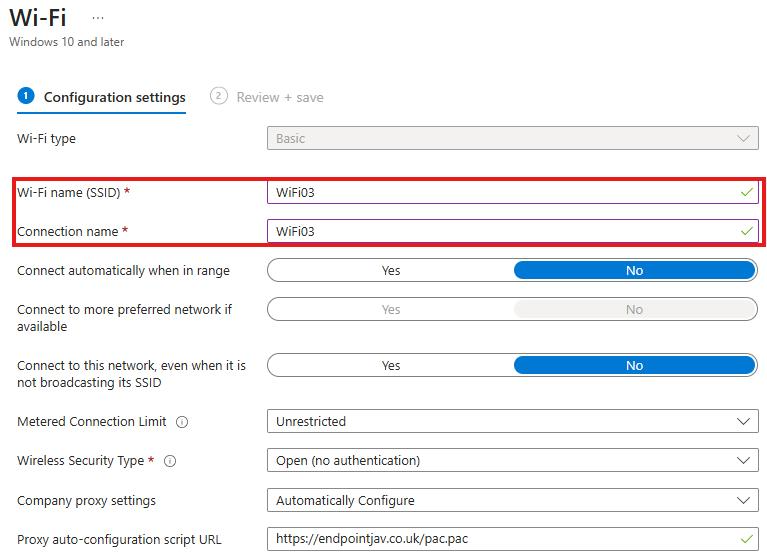
However, I was not able to save the policy!

The error message could be friendlier, and the ability to still click edit and make changes doesn’t initially fill you with confidence, hopefully this will improve as this is still a public preview – but crucially I was not able to edit the policy.
Therefore, I would say this new setting does fix the Scope tag merge issue.
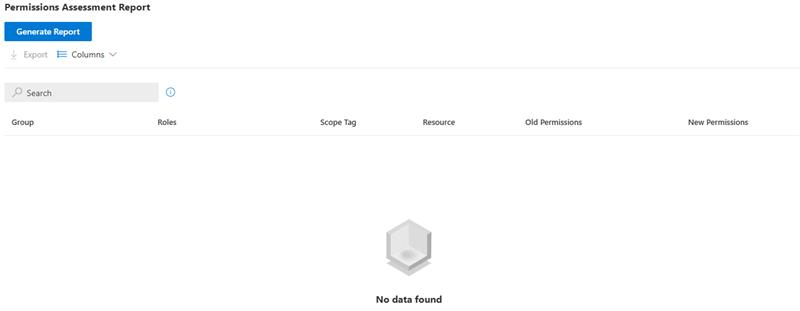
Permissions Assessment Report
Microsoft have provided a way to preview the impact of enabling this change. It’s called the Permissions Assessment Report, and you’ll find it under:
Tenant administration > Roles > Settings > Permissions Assessment Report > Generate Report
For each affected group, it compares:
- Old permissions (current merged behaviour)
- New permissions (scoped behaviour)
You can also export it to Excel, which is useful if you’ve got a larger environment.
During my testing I tried to generate the report multiple times but was met each time with ‘No Data Found’ – this may have been timing related as I was set this demo up specifically for this blog, or a bug in the public preview.
Final thoughts – Should You Enable It?
Yes… but not blindly.
This change is a massive improvement in how Intune RBAC behaves. It finally aligns with how most people expect scope tags to work.
However…
If your current RBAC model has been built around the old merging behaviour (intentionally or not), enabling this could:
- Break processes
- Remove access people rely on
- Trigger support issues
So my recommendation:
- New Intune Tenants → Enable it early, design around it properly from the start
- Existing Tenants → Assess the impact, make necessary changes, and enable it
As mentioned at the start, Microsoft plan to make this the default behaviour in the future. My advice? Don’t get caught out by this change!