
If you read my previous blog, What the Frontline?!, you will know I talked about Windows 365 Frontline Shared. If you have not read that yet, go back and give it a read. It sets the scene for this perfectly. The conversation around Frontline Shared usually goes like this:
“This sounds great. Multiple users, lower licence costs, profiles removed automatically to stop devices bloating.”
Then someone actually logs in and says:
“Where is my stuff? Why does this feel like a brand new PC every time I sign in? My settings, customisations, accessibility setup, everything is gone”
And that is the moment you hit the core issue with Shared mode. If you delete the user profile at log off and have no profile management, the experience feels broken. This is the gap User Experience Sync, or UES, is designed to fill. This blog explains what UES actually does, how it helps and how it to use it.
First, the Core Problem with Shared Mode – in some use cases
In Frontline Shared, users do not get a personal Cloud PC.
They sign into whichever Cloud PC in the pool is free. Today it might be CPC-01, tomorrow CPC-07. The device is persistent, but the user session is not tied to a single machine, and the user profile is removed on sign out.
That design is what allows concurrency based licensing and cost savings, but it creates a user experience issue. Without something handling profile management, every login feels like a first login.
That means:
- Desktop resets
- App customisations disappear
- Outlook profiles rebuild
- Browser profiles do not follow
- User settings are inconsistent
For some use cases this might be acceptable. But, for most, it feels like something is wrong.
Profile management in VDI is not new. We have had solutions like fsLogix for years. UES is Microsoft’s cloud-native answer for Frontline Shared. and, I have a sneaky suspicion a lot of the underlying code may have been borrowed from fsLogix.
How does it work?
User Experience Sync is Microsoft’s built-in profile solution for Windows 365 Frontline Shared, it is entirely configured and managed inside Microsoft Intune – it is designed from the ground up to be light touch and simple for Admins to deploy.
Think of it like this: UES makes Shared Cloud PCs behave more like roaming personal environments instead of disposable machines.
Under the hood, UES captures the user profile located in C:\Users%username%, including the NTUSER.dat hive, and stores it in Microsoft-managed cloud storage. You cannot customise exclusions, Microsoft do have some default exclusions in their documentation – I wont repeat that here.
When the user signs in to any Shared Cloud PC in the pool, that profile is attached during sign in. The device changes, but the user environment follows them. UES focuses on user state, not the OS or applications.
This typically includes:
- User profile data
- Desktop layout
- User-specific Windows settings
- Application configuration stored in the profile
- Documents within the user profile path
It does not turn Shared into Dedicated. The Cloud PC is still not theirs, but the environment feels familiar. From a user perspective, it stops the “new PC every morning” experience.
On first sign in with UES enabled, Microsoft automatically creates the user storage and begins redirecting the profile. Subsequent logins reattach that storage.
In my own testing, sign-in times are often faster because a fresh profile is not being built every time. However, if users bloat profiles with large amounts of data, that benefit could reduce.
UES is profile management, not magic. It cannot roam:
- Certificates bound to the virtual TPM
- Locally installed applications
- Certain non-roamable app data
If a scenario depends on device-bound identity or per-device installs, Shared mode may still not be the right fit.
How to enable UES
Here is the critical design decision. You cannot simply turn UES on later without impact. If you enable or disable UES on an existing provisioning policy, you must remove and re-add assignments. This deprovisions and reprovisions all Cloud PCs in that policy. Plan this early.
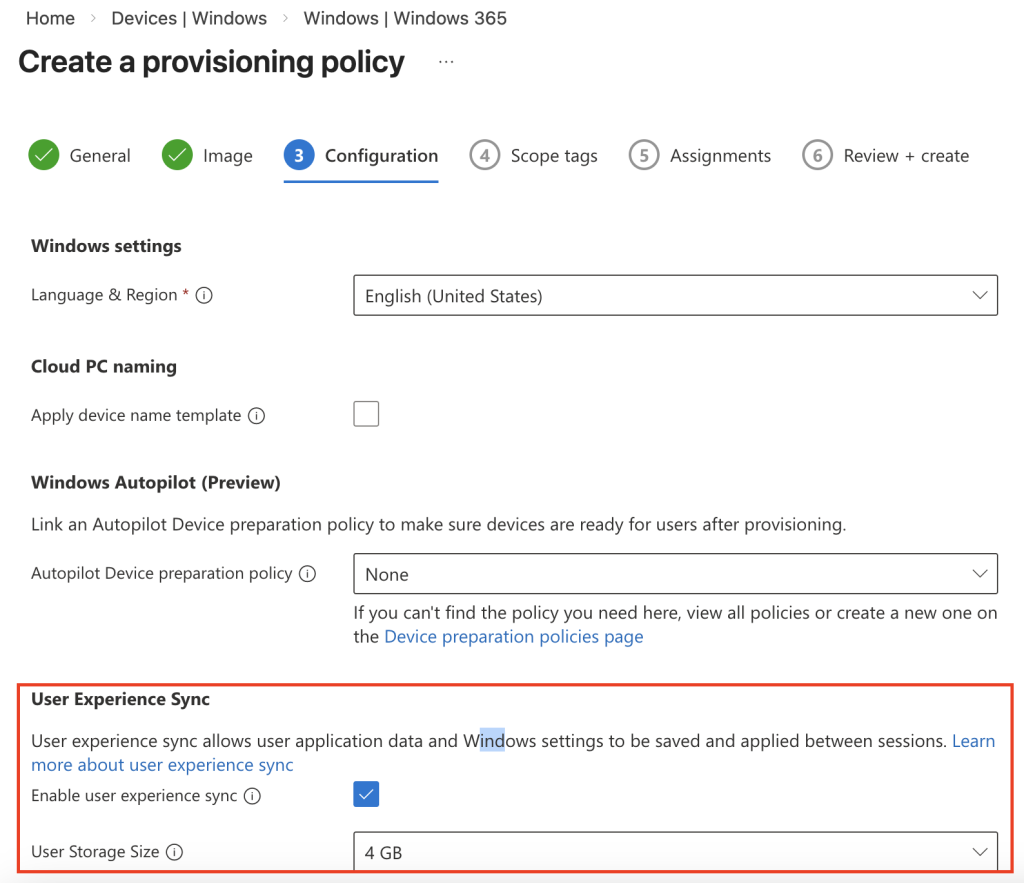
To enable UES, head to Devices > Windows > Windows 365 > Provisioning policies in Intune
Create a Frontline Shared policy and tick Enable User Experience Sync. You then choose the per-user storage size.
Storage Size, Quota & Management
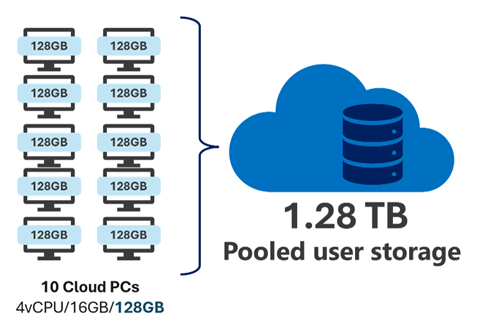
The amount of user storage you are given, is simple to calculate – you take the disk size of your Cloud PC, for example: with 4vCPU/16GB/128GB licenses you’d take 128GB and times it by the number of Cloud PCs in your policy assignment.
source: Microsoft Learn
Managing user profiles is simple too, although you can’t inspect the contents or download them from the Intune portal.
Head to the Provisioning Policy and you’ll see a new User storage tab, click it and you’ll see an overview of how much storage you have and how much is used. Along with a list of the users profiles, if you need to troubleshoot an issue with a user – this is where you’ll come to delete the profile.
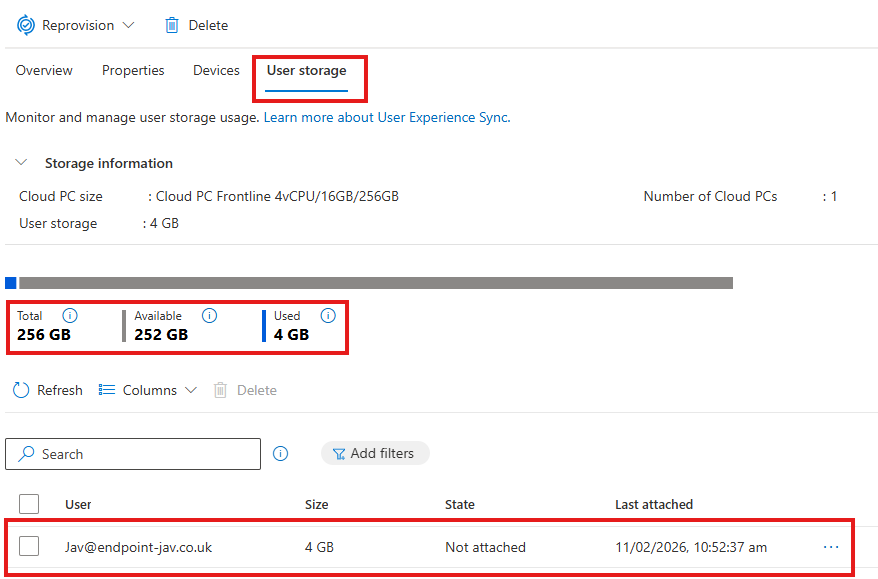
You can also set up proactive monitoring of this storage if you deem necessary under Tenant Admin > Alerts.
I mentioned profile bloat earlier, simply enabling UES won’t prevent profiles from becoming bloated. If you don’t already, you need to consider mitigations to this like OneDrive Known Folder Move, Edge Cache etc, I won’t cover this here as Microsoft cover it on their learn article, but I did want to make a point of it.
Final thoughts
For me, UES feels like the missing piece that makes Frontline Shared viable for many real-world use cases. It keeps the cost and concurrency benefits while removing the biggest user experience complaint.
It is not as flexible as traditional profile solutions, and you do not get granular control. But in exchange, you get a Microsoft-managed, low overhead solution that is simple to deploy and maintain – this very much fits in with the whole ethos of Windows 365.
If you are planning Frontline Shared and not planning UES, you should have a very good reason.