
This is my first blog! So, let’s hope I actually keep this up and it’s not a bad first attempt.
W365 Frontline is Microsoft’s answer to shift workers, part-time staff, job-shares, ad-hoc users and generally the “not everyone needs a Cloud PC all of the time” scenario. This post breaks down Dedicated and Shared from a real-world deployment perspective, focusing on how licensing, concurrency and user behaviour affect design decisions. Frontline now comes in two flavours, Dedicated and Shared, plus an off-shoot, Cloud App, which I’ll touch on briefly here but cover properly in another post.
Let’s start with licensing.
Licensing
The key shift with Frontline is that you are licensing concurrency, not individual ownership.
To use Frontline, it is a different licence type to the normal Enterprise licence. They are more expensive, but you get more flexibility for your money. Unlike traditional W365 Enterprise, you no longer require a licence per user. Another major benefit is that the same Frontline licence can be used for either Dedicated or Shared. You do not need to buy a specific Dedicated or Shared licence.
Licences are available in three core specifications:
- 2 vCPU, 4 GB RAM, 64 GB Storage
- 4 vCPU, 16 GB RAM, 128 GB Storage
- 8 vCPU, 32 GB RAM, 128 GB Storage
Pricing is here: https://www.microsoft.com/en-us/windows-365/frontline#Pricing
How you use that licence depends entirely on whether you deploy Shared or Dedicated.
Frontline Dedicated
The easiest way to think about Dedicated is personal machines with shared resources.
Think of it as three people each with their own personal Cloud PC per licence, however only one of those machines can be active at any one time. Each user still has a personalised, persistent Cloud PC, but each one cannot be used simultaneously.
Following this 3 to 1 ratio, the number of Cloud PCs you can build is three times your licence count. If you assign 100 Frontline licences, you can build 300 dedicated Cloud PCs for 300 unique users. The number of users that can be connected at once equals your licence count. These are your sessions. In this example, 100 users can be connected at the same time.
When the 101st user tries to connect, they will be blocked. Well, not always.
A concurrency buffer exists to help during things like shift changeovers where one user logs off and another logs in. However, excessive use blocks your organisation from using it for 48 hours. Excessive means four or more occasions in 24 hours where the buffer is used for more than one hour. Treat this as a safety net, not a design feature in my personal opinion.
The trade-off
To provide three Cloud PCs for one licence, Microsoft powers machines down when users sign out. The disk is offlined and the compute resource is reallocated. That is how the cost model works.
In real environments this can be noticeable. When a user signs in, the Cloud PC must boot. In my experience, connection time can be 2 minutes. In environments where users expect instant access, this will likely be noticed.
However, Microsoft includes intelligent pre-start. If a user logs in at similar times repeatedly, the system learns the pattern and starts the Cloud PC roughly 30 minutes beforehand. For this to work, the user must have logged in at least three times in the last 30 days at similar times.
Also worth noting, users who close sessions instead of signing out properly may not release concurrency as expected – implementing a idle session policy is useful here.
Summary
- 1 licence = 3 dedicated Cloud PCs
- 1 licence = 1 concurrent session
- Cloud PCs are persistent, apps, settings and data remain
- Cloud PCs power off when not in use
Frontline Shared
Frontline Shared is the opposite model.
Imagine a shared PC in a library. Someone uses it, finishes and leaves, and it is ready for the next person. That is Shared.
You still manage the operating system, configurations and applications at device level. You use that configuration to build a pool of Cloud PCs. You assign the pool to a group of users. Anyone in that group can access any Cloud PC.
The device is persistent, but the user state is not.
Users log in, use an app, and log off. A built-in scheduled task removes the user profile automatically. When they log in again, they are allocated another machine from the pool.
When Shared first launched, this profile wipe was the biggest pain point. App settings and customisations were lost. Microsoft’s answer is User Experience Sync (UES).
Think of UES as a basic cloud-managed FSLogix. It copies the user profile to storage and remounts it at next sign-in, giving session continuity without heavy admin overhead. Without UES, Shared feels broken for knowledge workers. It is only suitable for task-based or kiosk-style use.
Anything certificate-based, machine-bound, or TPM-dependent does not fit Shared well.
Licensing model
Shared is simpler.
1 licence = 1 Cloud PC = 1 concurrent session.
If you have 100 licences, you can build 100 Cloud PCs and have 100 users connected at once. You might assign those to a group of 1,000 users if only a fraction need access at the same time. That is where the savings come from.
Summary
- 1 licence = 1 Cloud PC
- 1 licence = 1 concurrent session
- Cloud PCs are not persistent from a user perspective
- User profiles are wiped at log off
- However, UES provides cloud-based profile continuity
Cost and an example
Frontline is cheaper because you are essentially aligning licences to concurrent usage, not headcount.
Here’s an example based on published pricing.
You have 100 field users with iPads. They need access to a Windows-only application, so you opt to publish it via Cloud PCs. At any given time, only 30 are actively using it.
W365 Enterprise (2 vCPU, 4 GB)
100 licences = $49,200 per year
W365 Frontline Shared
30 licences = $15,120 per year
W365 Frontline Dedicated
To support 100 users with personal machines, you need 34 licences (34 x 3 = 102 Cloud PCs)
Cost = $17,136 per year
You get 34 concurrent sessions, four more than Shared.
The saving comes from matching licence count to simultaneous use, not total users.
When to use which mode?
Ask these questions:
- Do users need a Cloud PC that is permanently theirs?
- Do they install applications themselves and expect them to remain?
- Do they make changes outside the user profile that cannot roam?
- Do they rely on TPM-bound user certificates?
If yes to any, Dedicated is the safer model.
If none of that matters and work is task-focused, Shared can work very well, especially with UES.
If you only need to stream an app, look at Cloud App – another blog coming soon for this.
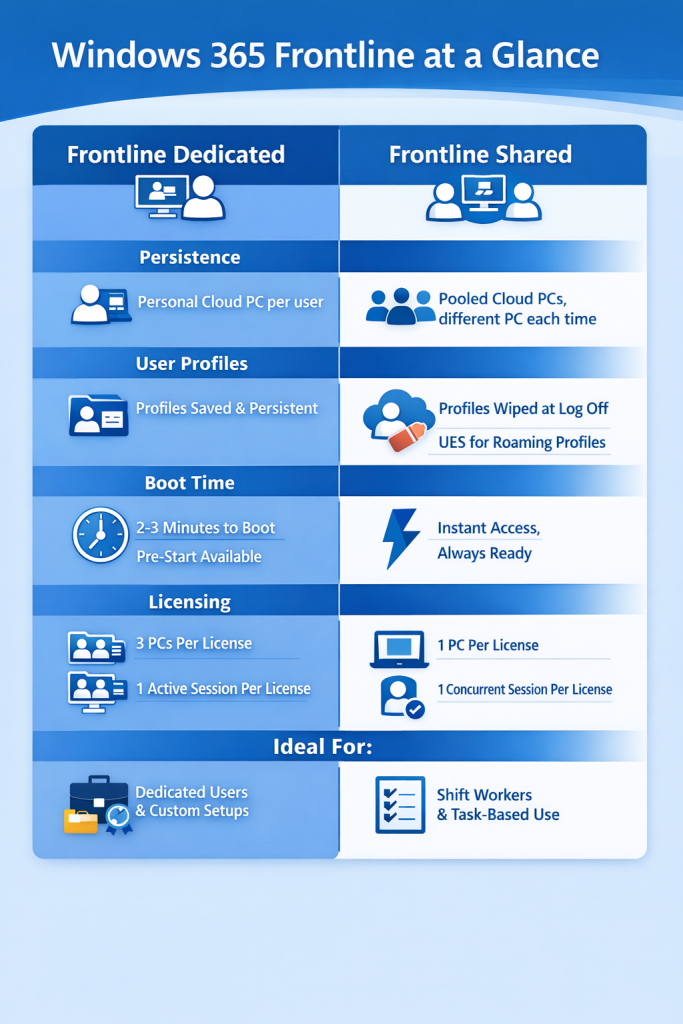
Quick Comparison – Graphic
My Overall Thoughts
Windows 365 Frontline, in either flavour, is a solid addition to the W365 stack. If users do not need always-on Cloud PCs, the cost savings can be significant.
A few closing tips…
- Watch out for Dedicated boot times in environments where users expect instant access.
- Be careful with Shared without UES – the experience isn’t great.
- UES cannot roam TPM bound user certificates.
- Whether you opt for Shared or Dedicated – implement an idle session policy, users often leave their Cloud PC connection open all day!
Setup is straightforward, including UES. It is just a different selection in the provisioning profile and management is the same as any other Cloud PC in Intune.