
The “don’t tick that box” prompt!
If you’ve ever worked with Windows, Intune, Entra and M365, you will have seen this at some point:
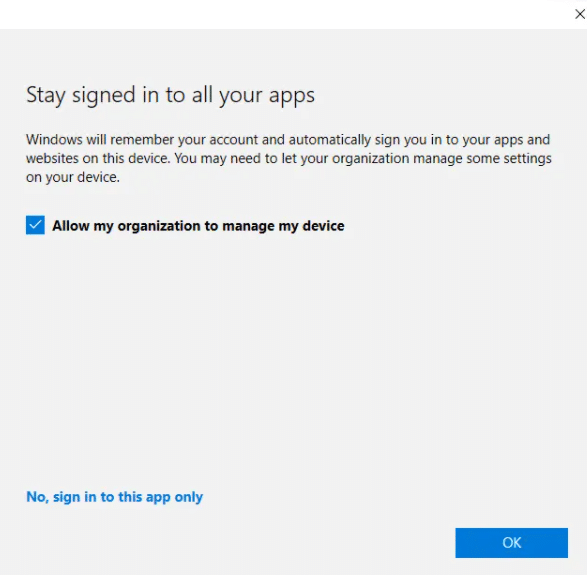
Someone signs into Outlook or Teams on their personal Windows laptop. They get hit with a prompt that says:
“Allow my organization to manage my device?”
And because it looks IT-ish, the user clicks it without reading. Then boom, their personal device suddenly shows up in your Intune inventory, gets policies applied, compliance checks enforced, and suddenly you have full device management on a laptop you never intended to manage.
For years, admins have had no real control over that prompt. You could always block personal device enrolment via platform restrictions, but you couldn’t stop that prompt showing.
That is finally changing.
So What’s Actually Happening Here?
When a user signs into a Microsoft 365 app (Teams, Outlook, Edge, etc.) on Windows they face that infamous prompt:
“Allow my organization to manage my device”
In Intune terms, if that box is ticked, and personal enrolment is allowed… the device gets:
- Entra ID registered
- MDM enrolled
- Intune management applied
All in one go – even if that device is a personal laptop that you did not want under management.
For organisations that support BYOD without full device management, this is a nightmare. You end up with:
- Personal devices cluttering your device inventory
- Intune compliance policies unexpectedly blocking access
- Privacy concerns from users
- Potential accidental actions like wipe
- A messy mix of corporate and personal endpoints
The Long-Awaited Fix Has Arrived
Microsoft has finally added a new control in Microsoft Intune:
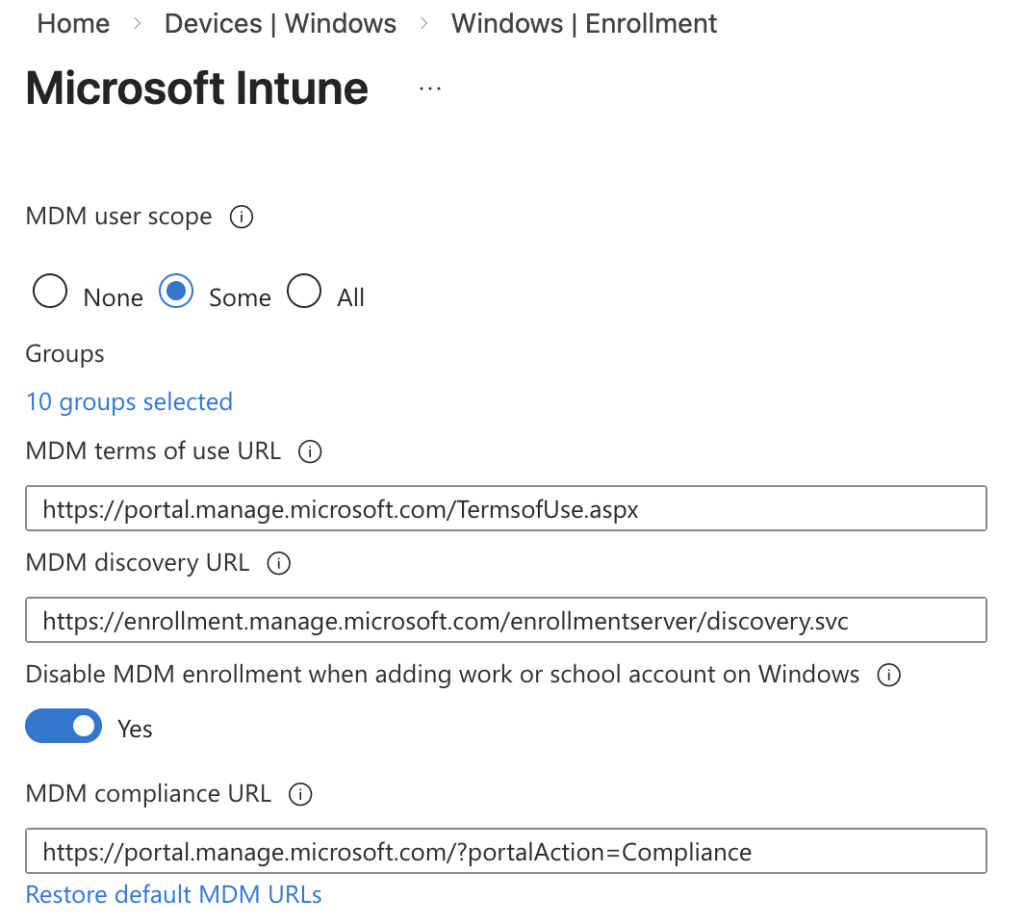
Disable MDM enrollment when adding work or school account on Windows.
This setting lives under the Automatic MDM Enrollment configuration in Intune.
What it does
- Prevents the MDM enrollment prompt when a user adds a work or school account
- Suppresses the “Allow my organization to manage my device” message in the applicable workflows
- Allows the device to be registered in Entra ID (for SSO and Conditional Access) without automatically enrolling it into Intune MDM
- Works during the app-initiated sign in flows (Teams, Outlook, Edge) – this was where the prompt appeared before!
In other words, it decouples identity registration from device management enrolment.
Why This Actually Matters
Before this feature, the only real options were:
- Accept that personal devices will just slip into Intune – an unlikely thing to accept
- Train users to uncheck the prompt – most users don’t read the instructions in full!
- Block personal device registration entirely – lose the benefits of allowing users to use personal devices
But, now you can configure:
“Yes, you can register for identity and SSO — no, do not enroll into Intune itself!”
That means:
- BYOD becomes BYOD again — not semi-managed by accident
- Your compliance policies don’t accidentally block users
- You reduce accidental device management
- You minimise privacy concerns from users
What It Doesn’t Do (Yet)
There are still a few important caveats to understand:
- It does not disable enrolment triggered intentionally via Company Portal or Settings app workflows
- In some apps or flows it may still show depending on how they initiate the sign-in
- From what I can see it currently applies to the app-initiated flows, which are the scenarios most organisations care about
Final Thoughts
Intune has always allowed and supported corporate-owned and personal-owned scenarios. And, in some cases automatic MDM enrolment makes sense. But BYOD is different – users just need access to apps, and are not comfortable enrolling into full management.
With this new setting, Microsoft has given admins a way to manage identity, SSO and access without accidentally managing devices in Intune.
If you support BYOD, this is one of those settings worth flipping early, because once it’s live, users no longer accidentally hand you control of their personal laptops every time they sign into Teams.