
Hello! This is my first Quick Tip blog, and in this blog we will be exploring how to find out the Windows 365 Connection Method.
I’ve been fortunate enough to spend over a decade working in endpoint management and, like most IT admins, I’ve lost countless hours digging through obscure settings, testing multiple solutions and trying to answer questions that seemingly nobody else online has documented properly.
You know the pain.
So alongside my longer technical deep-dives, I’m launching a new Quick Tip series.
These posts are designed to be short, practical and straight to the point. No fluff. No endless introductions. Just quick solutions, useful findings and real-world tips from the field.
Let’s dive in…
How are users connecting to Windows 365?
For as long as I can remember, figuring out how Windows 365 users are actually connecting into your environment has been surprisingly difficult.
Are they using:
- Windows App
- Windows App – Web
- Remote Desktop MSI (deprecated March 27, 2026)
- Remote Desktop Store App (deprecated September 30, 2025)
- etc
When organisations started moving users away from the deprecated Remote Desktop clients and onto Windows App, one big problem appeared:
The reporting data to prove who had and had not migrated did not really exist in an easy-to-consume way.
In large Windows 365 environments, that quickly becomes a challenge.
Well… that has now changed.
Introducing the new Windows 365 monitoring and reporting platform — now in Public Preview.
How to find the Windows 365 Connection Method
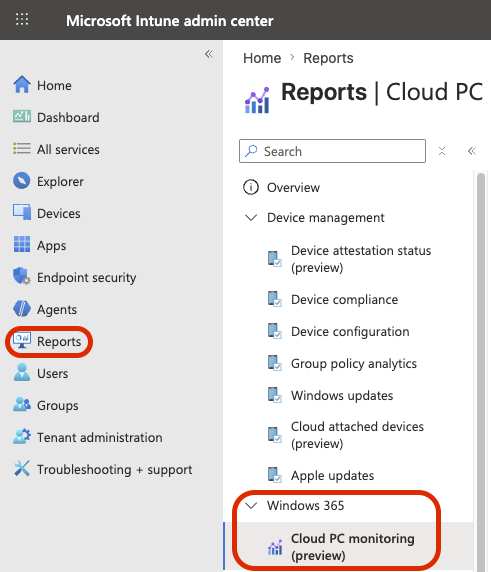
Within Intune select Reports > expand Windows 365 > select Cloud PC monitoring (preview)
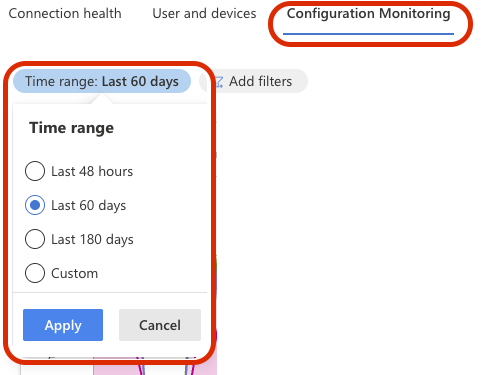
At the top of the new reporting view select Configuration Monitoring, its also a good idea to filter to the date range you are interested in.
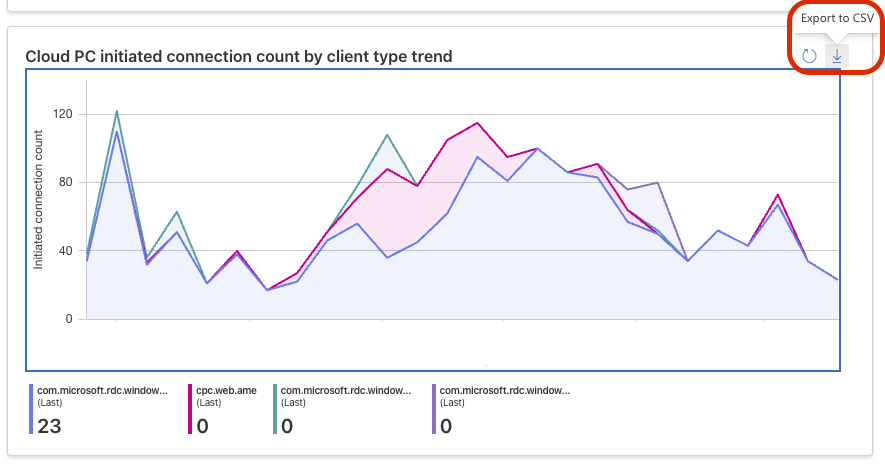
Look for the ‘Cloud PC initiated connection count by client type trend‘ graph, you can interact with the graph directly here or export to CSV
Client Versions
One thing that is still not particularly friendly is the backend client naming convention Microsoft uses within the reporting.
To make life easier, here is a quick translation table mapping the backend client identifiers to their actual client names*.
| ClientType | Client Name | Platform | Description | Status |
|---|---|---|---|---|
cpc.web | Windows App Web Client | Web browser | Windows App via Web Browser (latest web experience). | Active |
com.microsoft.rdc.html | Remote Desktop Web Client | Web browser | Standard HTML5 browser-based Remote Desktop access experience. | Active – as far as I can tell… |
com.microsoft.rdc.windows.store | Remote Desktop (UWP / Store App) | Windows | Legacy Microsoft Store (UWP) Remote Desktop app. | Deprecated |
com.microsoft.rdc.windows.msrdc.x64 | Remote Desktop Client (MSI) | Windows | Classic desktop Remote Desktop client installed via MSI (64-bit). | Deprecated |
com.microsoft.rdc.windows.wa.msrdc.msix.x64 | Windows App | Windows | Windows App delivered via MSIX for 64-bit systems. | Active |
com.microsoft.rdc.windows.wa.msrdc.msix.arm64 | Windows App | Windows (ARM) | Windows App client for ARM64 devices. | Active |
com.microsoft.rdc.macos | Windows App – macOS | macOS | Windows App for macOS devices. | Active |
com.microsoft.rdc.macos.mau | Windows App – macOS (MAU) | macOS | Same macOS client, installed/updated via Microsoft AutoUpdate (MAU). | Active |
com.microsoft.rdc.android | Windows App -(Android) | Android | Windows App for Android devices. | Active |
com.microsoft.rdc.ios | Windows App – (iOS/iPadOS) | iOS / iPadOS | Windows App for Apple mobile devices. | Active |
*This mapping table is based on currently publicly available information and my own testing/research.