
I have spoken to a fair few Copilot users recently and there is usually a common question – I like how Copilot gets work done etc, but I want to Personalise Microsoft 365 Copilot responses to me. In this blog I’ll show you how…
Microsoft 365 Copilot can summarise meetings, draft emails, create content and help you make sense of information. But the first answer it gives you might not always feel like an answer you would have written.
Perhaps it is too long.
Maybe it uses American English when you want UK English.
Or it gives you five paragraphs when what you really wanted was six clear bullet points that you could paste directly into Teams.
The usual response is to add the same request to every prompt:
“Keep it short, use UK English, avoid technical jargon and put the answer into a table.”
That works. But repeating it every time is not exactly efficient.
The good news is that Microsoft 365 Copilot has personalisation capabilities designed to help it understand how you work and how you want information presented. The aim is simple: teach Copilot your preferences once, rather than starting from scratch in every new conversation.
So, how does that actually work?
How can I Personalise Microsoft 365 Copilot?
There are four main layers that can help shape the responses you receive from Copilot:
- Work profile
- Saved memories
- Chat history
- Custom instructions
These layers personalise Microsoft 365 Copilot with a mixture of organisational context, information it has picked up over time and direct instructions you have written yourself.
Think of it like starting a new role and working with a new assistant.
On day one, they might know your job title and where you sit in the organisation. Over time, they begin to understand the sort of work you do, the topics you care about and how you prefer information to be presented.
Custom instructions are where you stop waiting for them to work it out and simply hand them direct instructions.
The key point is that these layers are related, but they are not all the same thing.
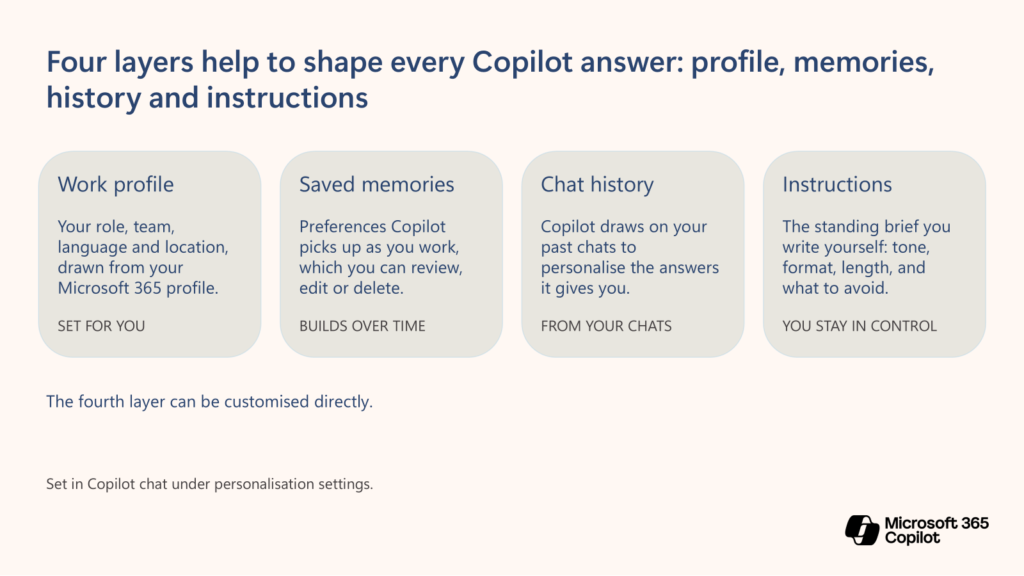
Figure 1: Four personalisation layers work together to shape how Microsoft 365 Copilot responds, with custom instructions providing the standing brief you control directly.
Work Profile – What Microsoft 365 Already Knows
Your work profile provides basic organisational context such as your role, team, language and location. This information comes from your Microsoft 365 profile rather than something you manually write into every prompt.
For example, knowing that you work in IT may help Copilot use more relevant terminology. Equally, knowing your role, language or location can help it provide an answer that is better aligned to your working context.
This is the “set for you” layer.
For IT teams, this is another good reason to make sure identity and profile information is accurate.
Saved Memories – What Copilot Learns Over Time
Saved memories are useful details and preferences Copilot can retain from your Copilot Chat conversations. These might include your communication style, common tasks, work goals or recurring topics.
For example, you might tell Copilot:
“Remember that I prefer short executive summaries with the main risks called out separately.”
Once saved, that preference can become part of the context Copilot uses in future conversations.
This is the “builds over time” layer.
Chat History – What Copilot Infers from Previous Conversations
Copilot can also use your previous Copilot Chat conversations to make inferences about what matters to you and use that context in subsequent conversations.
This is slightly different from a saved memory.
A saved memory is a more defined piece of information that Copilot retains. Chat-history personalisation is dynamic: Copilot can identify useful patterns from earlier conversations and may update or discard older details as it learns what remains relevant.
For example, if you regularly ask Copilot to explain technical subjects for a non-technical audience, it may use that history to help tailor future responses.
This is the “from your chats” layer.
If you need a conversation that does not access or update personalised information, Microsoft also provides temporary chat. Temporary chats do not appear in your Copilot Chat history and are not referenced by Copilot later.
Custom Instructions – You Stay In Control
This is the layer I think most people should look at first.
Custom instructions let you directly tell Copilot how you generally want it to respond. You can define things such as:
- Tone
- Format
- Level of detail
- Default response length
- Language
- What Copilot should avoid
- How uncertainty or assumptions should be handled
Instead of adding those preferences to every prompt, you write them once and save them in your personalisation settings. Copilot then uses those preferences to tailor future conversations.
This is the “you stay in control” layer.
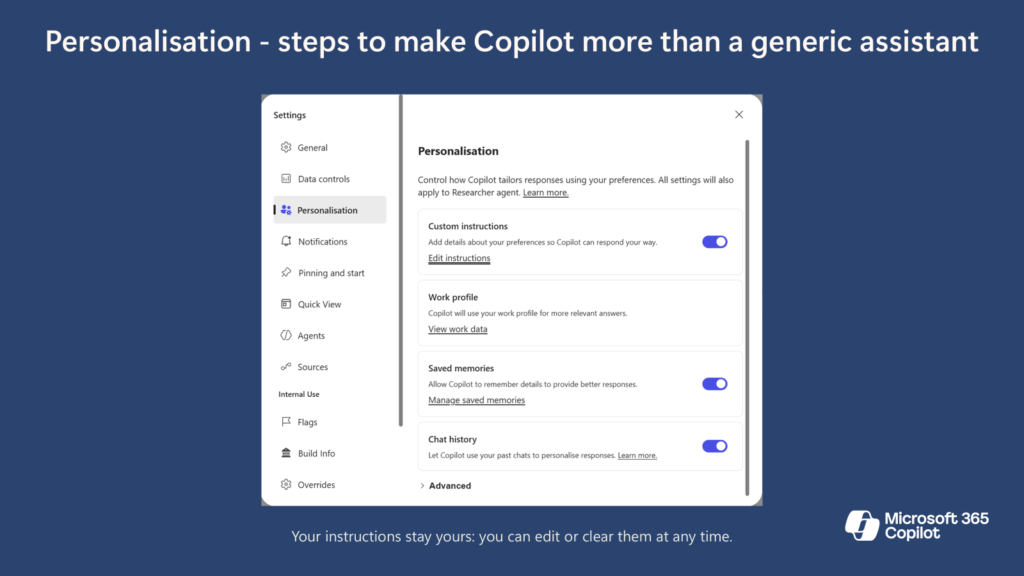
How to Configure Custom Instructions
Within Microsoft 365 Copilot:
- Open Settings
- Open Personalisation.
- Find the Custom instructions tile.
- Select Edit instructions.
- Enter your preferences.
- Select Save instructions.
Your saved instructions are then used to tailor future Copilot conversations. You can return to the same area to refine, disable or clear them whenever your requirements change.
What Do Good Custom Instructions Look Like?
The best instructions tend to be short, specific and reusable.
A common mistake is to put far too much information into custom instructions.
Custom instructions are not the place for the full background to your current project, this week’s deadlines or a detailed description of one particular task. Those details belong in the prompt.
Good custom instruction example
Here is a short example aimed at someone working in IT:
I work in IT and normally write for a mixed technical and business audience.
Always use UK English and clear, simple language.
Use short bullet points for summaries and numbered steps for procedures.
Keep initial answers concise unless I ask for more detail.
Clearly flag assumptions, risks and information that could not be verified.
That is enough to establish:
- Your working context
- Your normal audience
- Your language preference
- Your preferred format
- Your default length
- Your expectation around uncertainty
It does not try to explain every possible task you might ever give Copilot.
Final Thoughts
Custom instructions are not the flashiest Copilot capability. They do not create a new agent, automate a business process or produce an exciting demo.
But they remove one of the most common frustrations with generative AI: having to repeatedly explain how you want it to communicate.
Your work profile gives Copilot some organisational context. Saved memories help it retain useful preferences. Chat history helps it recognise patterns from previous conversations. Custom instructions give you the opportunity to set the rules directly.
My recommendation?
Do not try to create the perfect instruction on day one.
Write it. Save it. Test it. Tweak it.
That is how Copilot starts to feel less like a generic assistant and more like an assistant that understands how you work.